
How to transfer photos from phone to PC
Updated

The short version
 The short version
- Moving your whole camera roll (hundreds or thousands of photos)? Nothing beats a USB cable.
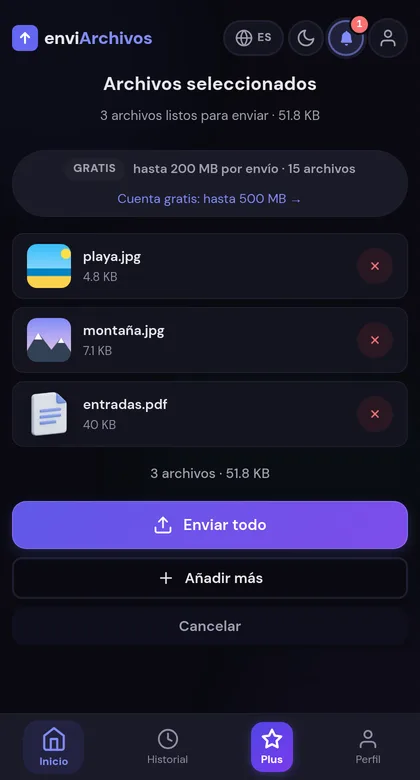
- Moving a handful of photos right now? The fastest cable-free option is enviarchivos.com: upload, type four letters on the PC, download.
- Want them permanently in sync? Turn on Google Photos or iCloud, at the cost of a subscription and some patience.
- WhatsApp and Telegram compress. Only use them if quality does not matter (or send as a document).
Moving photos off your phone should be trivial. Between cables that never turn up, apps that demand an account on both devices and clouds that fill up, it rarely is. Here is every method that actually works in 2026, with a cable and without one, and which to pick depending on how much you are moving.
What we see at enviArchivos
Almost one in three transfers is a photo
Photos are 31 % of everything that goes through enviArchivos (166 of 531 transfers), the second most common type. And they are the least often fetched with the Download button: 47 %, against 94 % for ZIP files.
A tip that follows from it: if the photo is opened on a phone on the other side, it already shows in full when the code is opened, at its original size. Long-press it and save it from there; no need to go through the Downloads folder.
enviArchivos data: 531 transfers, as of 26 September 2026.
Method 1: USB cable (fastest for the whole camera roll)
Old-fashioned but unbeaten: USB 3 moves gigabytes in a minute or two and does not care about your Wi-Fi.
Where it falls down: you need the cable, the phone has to stay plugged in, and on a Mac an Android phone needs extra software.
Method 2: enviarchivos.com (fastest without a cable)
This is the case the site was built for: a few photos, right now, from any device to any other device, with nothing installed on either end.
No account, no app, no pairing, and the two devices do not need to be on the same network. That is exactly where AirDrop, Quick Share and most “nearby share” apps stop working.
Method 3: Google Photos or iCloud (for permanent sync)
Best if you want everything backed up without thinking about it. Turn on backup, wait for the upload, then open photos.google.com or iCloud.com on the PC. Two catches: the free tier runs out fast, and the first upload of a large library can take days.
Method 4: AirDrop and Quick Share (great, until they are not)
Both are excellent inside their own ecosystem: AirDrop between Apple devices, Quick Share between Android and Windows. They are fast and lose no quality. They also fail the moment the other device is the wrong brand, is not signed in, has Bluetooth off, or is not physically next to you.
Pick by situation
- The entire camera roll, one time: USB cable.
- A few photos, right now, no cable: enviarchivos.com.
- Always in sync, no thinking: Google Photos or iCloud.
- Same ecosystem, same room: AirDrop or Quick Share.
- Sending to someone else: a link, not a chat app that compresses.
Keeping the original quality
The single most common mistake is sending photos through a chat app. WhatsApp re-encodes images by default and can cut a 4 MB photo down to a few hundred kilobytes. If you care about the original file, use “Document” instead of “Photo”, or skip chat apps entirely and send the file as a file.
What a chat app actually does to your photo
“It looked fine on my phone” is the most common complaint, and the damage is done before the photo ever leaves. Here is what each app does when you send an image the normal way:
- WhatsApp re-encodes to JPEG and caps the long edge at roughly 1600 px. A 12 megapixel photo comes out at roughly 2 megapixels. Sending it as Document instead of Photo skips all of it.
- Telegram asks. The Compress image checkbox is the whole difference: unticked, the file arrives byte for byte.
- Instagram and Messenger DMs re-encode with no way to opt out. Treat them as previews, not transfers.
- Email does not touch the pixels, but Base64 encoding inflates the attachment about 33%, so a 20 MB photo can bounce off a 25 MB cap.
Two other things disappear quietly. EXIF data (date, camera, and often GPS) gets stripped by most chat apps, which is good for privacy and bad if you were sorting a trip by date. And an iPhone sending HEIC to a Windows PC will usually convert to JPEG somewhere along the way; that conversion is lossy even when the resolution stays the same.
If any of that matters, the rule is simple: move the file as a file. A browser transfer, a cable or a cloud upload all preserve the original bytes. A chat app is the only one of the four that does not.
How long it should take
Upload speed is the bottleneck, not download. Home connections are asymmetric, so the number in your contract is the download one. Rough times for a 500 MB batch of photos:
- Fibre, 300 Mbps up: about 15 seconds.
- Slow fibre or cable, 10 Mbps up: around 7 minutes.
- 4G, 20 Mbps up: 3 to 4 minutes, if the signal holds.
The one thing that genuinely breaks a large upload from a phone is switching networks halfway: walking out of Wi-Fi range onto mobile data. Stay put until the progress bar finishes.
FAQ
Do I need to install anything on the PC?
No. With enviarchivos.com both sides just open a browser.
Do both devices need to be on the same Wi-Fi?
No. That is a requirement of AirDrop and Quick Share, not of a link-based transfer.
Is there a size limit?
Yes: 200 MB per transfer without an account, deleted after 10 minutes, and 500 MB with a free account, deleted after 1 hour. The limit is for the whole transfer, not for each photo. Paid plans raise both numbers.
Does it work from iPhone to Windows?
Yes, and in any other combination. It runs in the browser, so the operating systems on either end are irrelevant.